1.2.4
Latest30 November 2026The layout ring · Gaps from the menu bar · Every desktop keeps its layout
NewThe layout ring
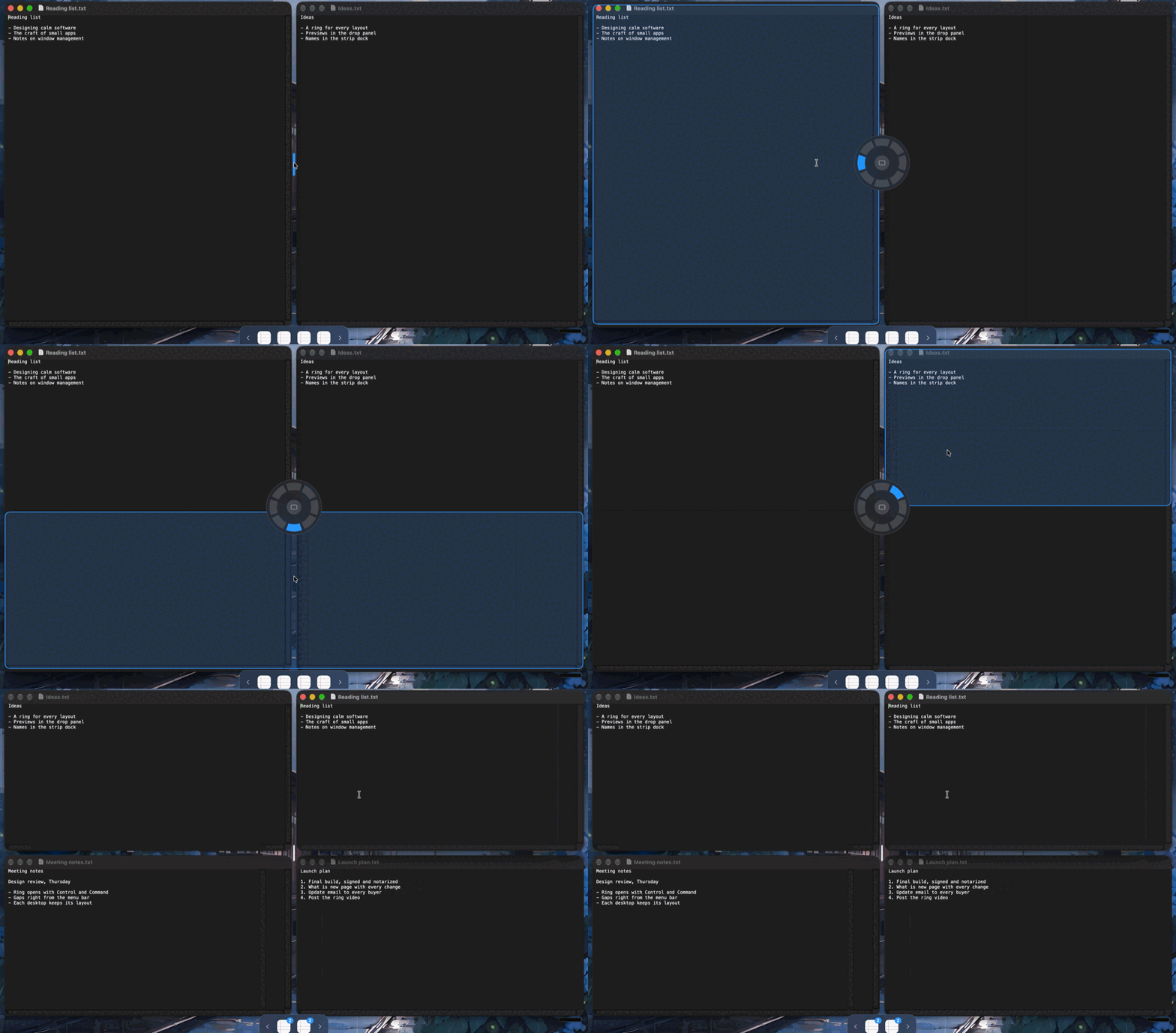
A ring at the pointer that places the window you are in: a half, a corner, the top or the bottom, or the whole screen.
How to use it
- Turn it on in Settings, Navigation, Layout ring, or with the Layout ring switch in the menu bar panel.
- Hold Control and Command. The ring appears where the pointer is.
- Move toward a side or a corner; the place lights up on screen. Stay in the middle for the whole screen.
- Let go to place the window, or press Escape to leave it where it was.
- Want other keys? In Settings, click the shortcut and hold the keys you like.
NewGaps from the menu bar
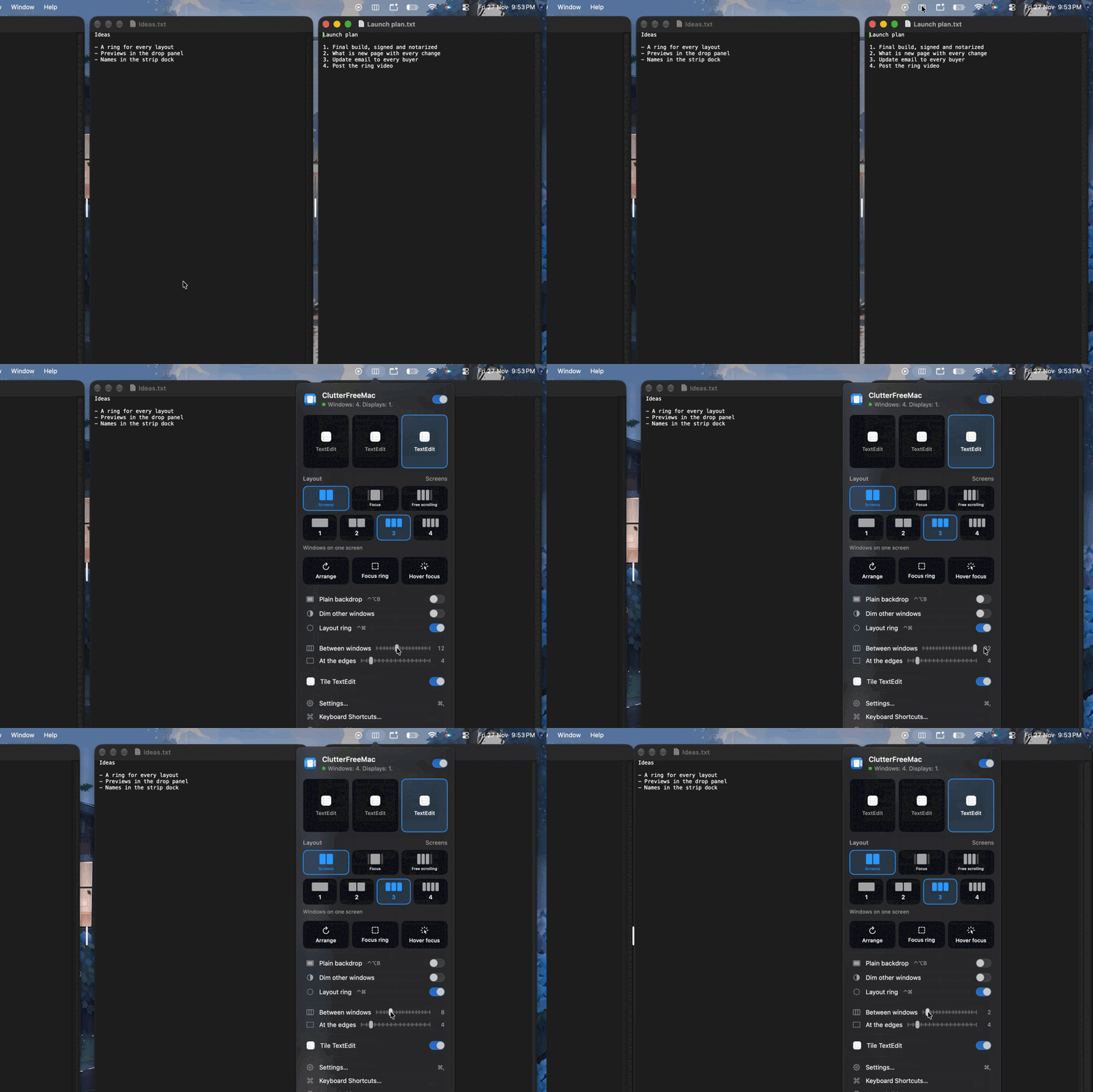
Two sliders for the space between windows and at the screen edges, right in the menu bar panel.
How to use it
- Click the ClutterFreeMac icon in the menu bar.
- Drag Between windows: the windows move as you drag.
- Drag At the edges for the space around the screen.
ImprovedEvery desktop keeps its layout
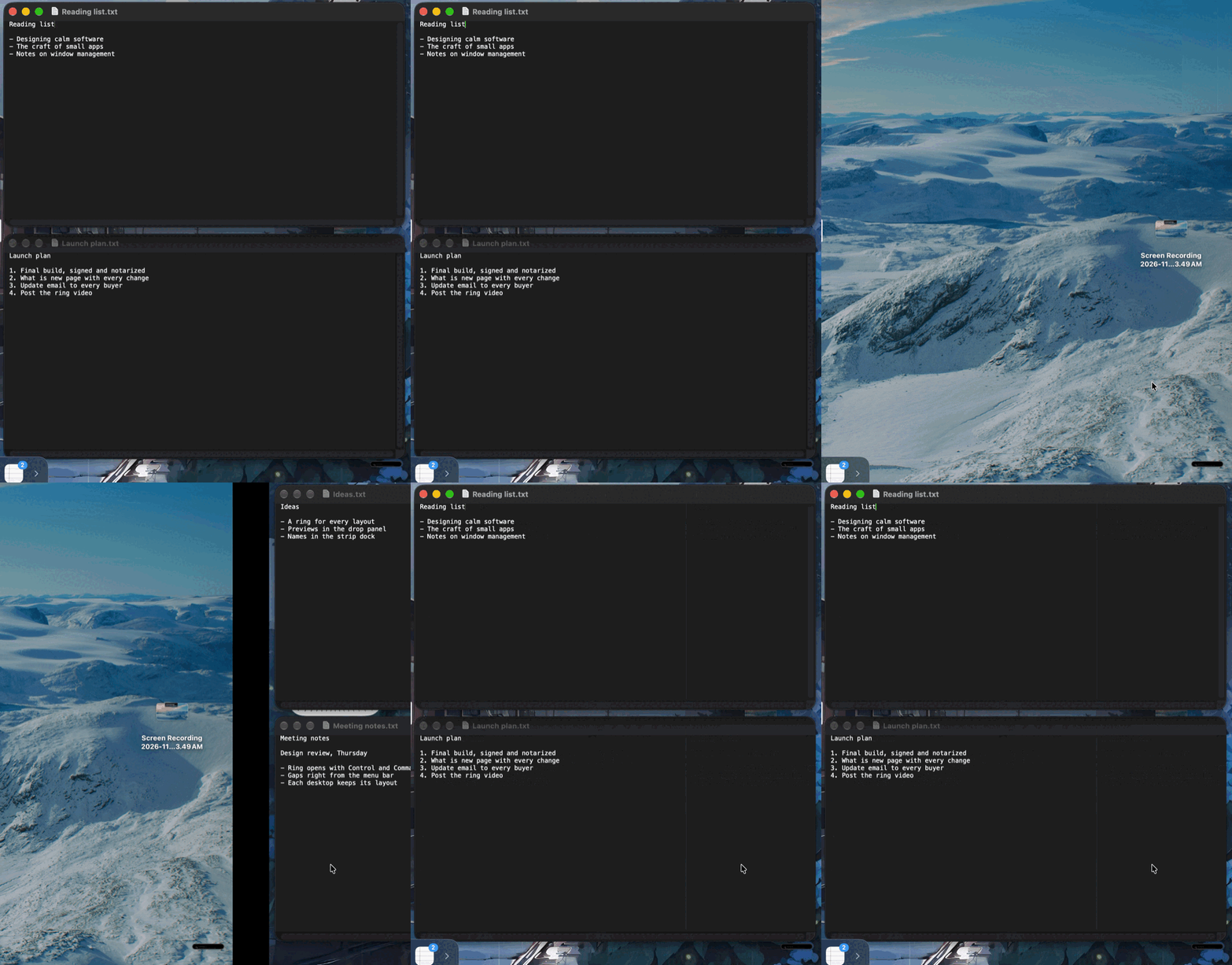
Widths, screens, stacks and tabs stay as you left them on each desktop, even after a restart.
How to use it
- Arrange a desktop the way you like: widths, stacks, tabs.
- Go to another desktop and work there.
- Come back: everything is where it was. Nothing to switch on.
NewNames in the strip dock
The strip dock shows the app and the window's name above the icon under the pointer.
How to use it
- Show the strip dock in Settings, Navigation, if it is off.
- Rest the pointer on an icon in the dock.
- Click to go to that window.
ImprovedThe window bar on a click
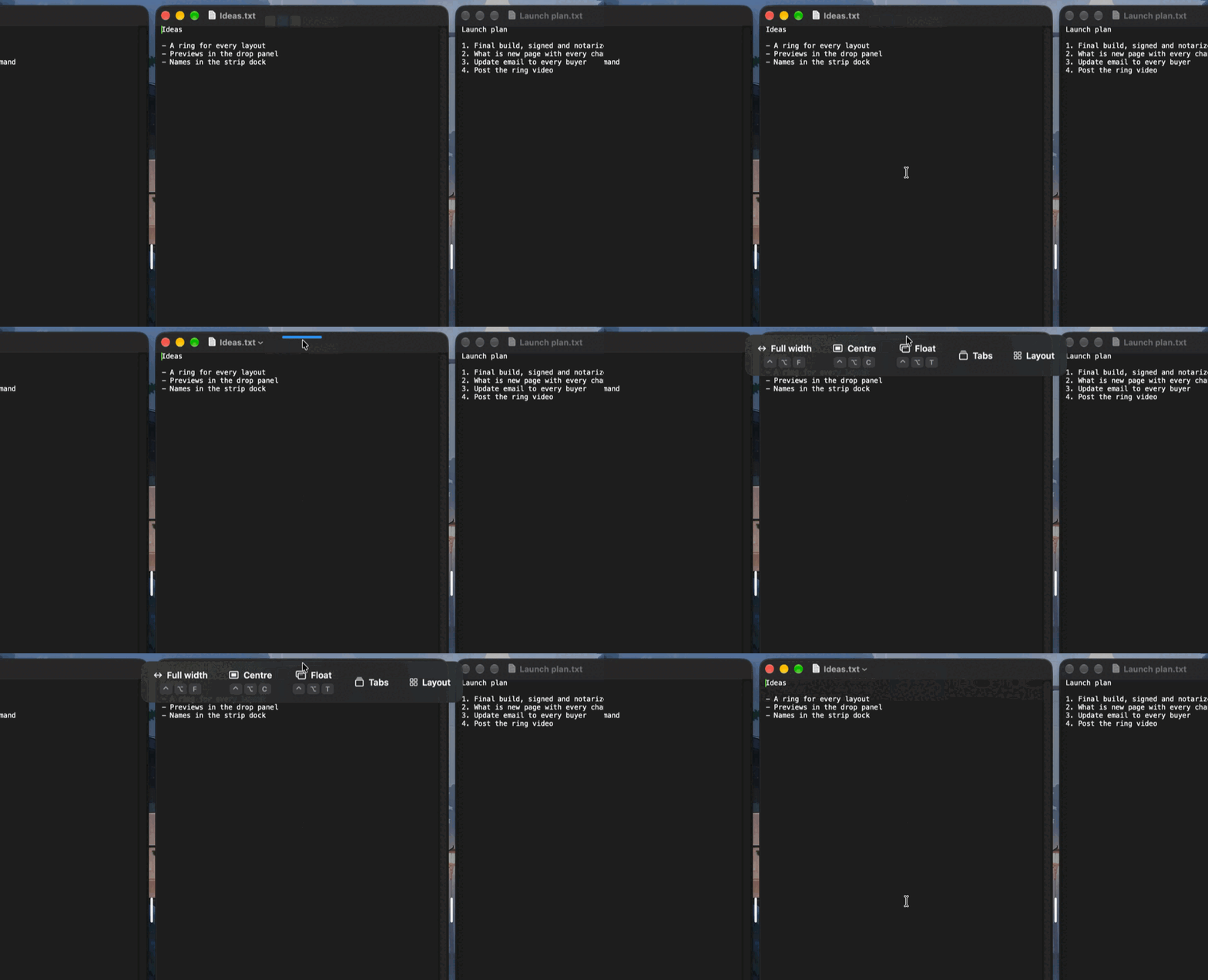
The bar for a window opens when you click its white line, and never by itself.
How to use it
- Rest the pointer on the top of a window: a slim white line appears.
- Click it for the bar: Full width, Centre, Float, Tabs, Layout.
- Click anywhere else to close it.
ImprovedPreviews in the drop panel
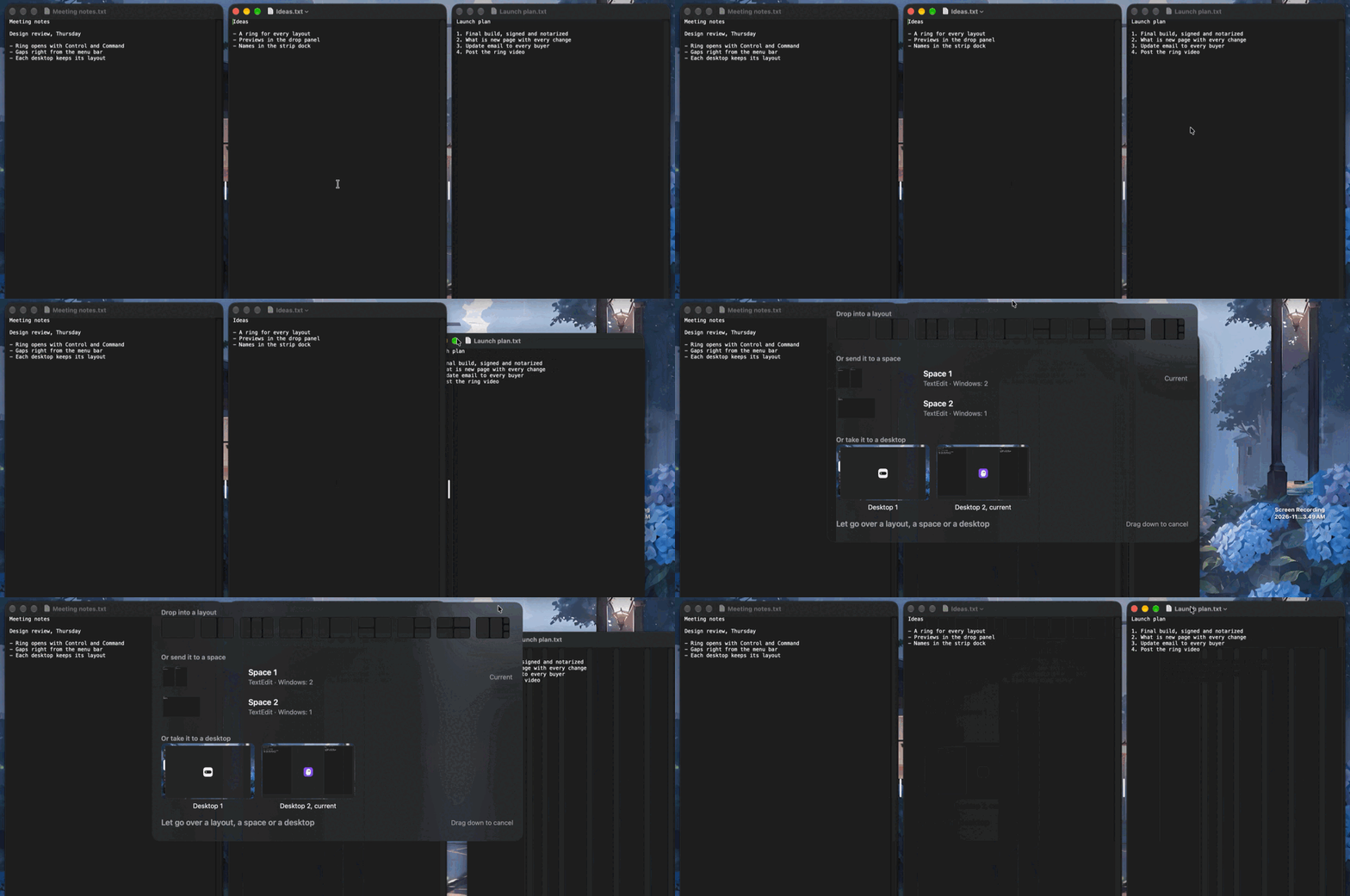
Each space and desktop in the drop panel shows its windows in small, so you see where a window will land.
How to use it
- Drag a window by its title bar to the top middle of the screen.
- The panel opens with layouts, spaces and desktops, each with its windows.
- Let go over the one you want, or drag down to cancel.
ImprovedMenu bar apps tile too. Apps that start in the menu bar and open a window later join the strip like any other app.
ImprovedLighter on your Mac. Less work each time windows move, and window pictures pause while nobody is at the Mac. See the measurements
FixedSteadier with two displays. Windows keep their full height on each display, and a display you leave out in Settings gives its windows back.
1.2.1
7 November 2026NewTabs for any two apps. Tabs in the window bar asks which app to tab with; Pop out parts them.
NewLayouts with your apps. Choose which apps fill the other spaces of a layout.
ImprovedUp and Down in a stack. A stacked window moves up or down from its bar.
ImprovedMail and full screen apps. A new message opens at its own size; a full screen app opens with no flash of an empty desktop.
1.2.0
3 November 2026NewThe window bar. Full width, Centre and Float right on a window.
NewYour own layouts. Make layouts in Settings and drop windows into them, plus Ultrawide, Top and bottom and Three stacked.
NewTake a window to another desktop. Hold a window over a desktop in the drop panel and the Mac goes there with it.
NewUpdates by themselves. New versions install when your Mac is idle.
NewThe guided tour. Menu bar, Take the Tour.
1.1.0
27 October 2026NewThe menu bar panel. Windows on the screen, layout, Arrange, focus ring, dimming and more, one click away.
New18 languages. Follows your Mac's language, or pick one in Settings.
NewPlain backdrop. Hide everything behind the window you are sharing.
NewActivity. Windows placed and moves this week, counted on your Mac only.
Get the new version
Have 1.2.2? The update reaches it by itself within a few days: it installs after a quiet minute, or right away from the menu bar. On an earlier version:
- Email usWrite to support@macdeclutter.online from the address you paid with. We reply with your download.
- DownloadOpen it and drag ClutterFreeMac to Applications.
- ReplaceQuit the old one first, choose Replace, then open the new one. Your settings, shortcuts and layouts stay as they were.
- Allow againComing from 1.2.1 or earlier, macOS asks once more for Accessibility and Screen Recording. If ClutterFreeMac is already listed in System Settings, remove it with the minus button, then allow it when asked.
Bought it from now on? Your receipt already has the newest version. Setup guide
 Nibbu
 Free Mac